How to Copy Image to Clipboard and Paste in Code
This post will go over a technique for pasting images from your clipboard into a markdown file using vs code. This is useful particularly for pasting images to use with Hugo; Using Hugo with pasted images will be the focus of this post.
0. Ensure you have VS Code or related installed.
On Arch, this is Code - OSS, the "Official Arch Linux open-source release".
sudo pacman -S code
1. Install the Paste Image extension by mushan
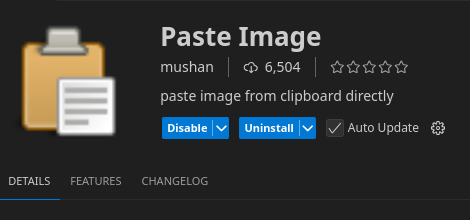
Out of the box, this will by using ctrl + alt + v, or command + alt + v on a mac, and will save the image as a png in the current directory.
So I am using a certain hotkey to take a selected screenshot, more on that later, and when I paste it in this doc, it will look like this:

We will need to do a few more steps to have this integrated better with Hugo.
- Change where the image is saved
- We want it saved probably in
static/pasted_imagesto keep things clean.
- We want it saved probably in
- Change the name of the link in markdown to reflect where image is saved.
There are actually 2 options here.
(1)One is to keep your images in thestaticfolder and reference them there.
(2)A second is to make a directory for the markdown post, save the markdown post asindex.md, and reference the image as is. The second option here does not require any changes to the settings.json.
--> Just remember to make directory/index.md format if you go with option 2...
2. Modify settings.json
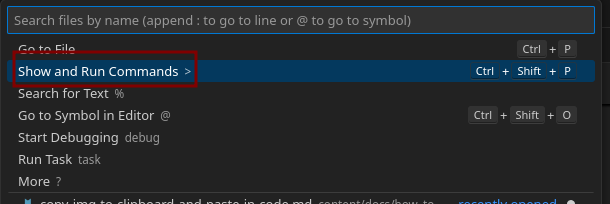
Hit shift + ctrl + p and type settings.json
Or click
2.1 Modify settings.json
{
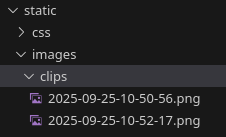
"pasteImage.path": "${projectRoot}/static/images/clips",
"pasteImage.forceUnixStyleSeparator": true,
"pasteImage.namePrefix": "${currentFileNameWithoutExt}-",
"pasteImage.insertPattern": "",
"pasteImage.showFilePathConfirmInputBox": false
}
...
-
What is ${projectRoot}?
- This is from the extension that was installed, and is the base/root of the folder you opened in vscode.
- If it is a multi-root workspace, it resolves to the workspace folder that contains the current file.
- If no workspace and just single file, it will probably do something weird.
- If you want a vscode based variable, use
${workspaceFolder}
-
What is
showFilePathConfirmInputBox?- If you set this to true...you will be presented with the path that the image will save in at the top search box, like so:
 Click enter and you have your saved image.
- If you set this to true...you will be presented with the path that the image will save in at the top search box, like so:
-
These are supported variables for the "Paste Image" extension:
${imageFilePath}, ${imageOriginalFilePath}, ${imageFileName}, ${imageFileNameWithoutExt}, ${currentFileDir}, ${projectRoot}, ${currentFileName}, ${currentFileNameWithoutExt}, ${imageSyntaxPrefix}, ${imageSyntaxSuffix}
2.2 Modify settings.json for placing image in same markdown directory
This is the default usage. So you could clear out what you had, or use this:
{
"pasteImage.path": "${currentFileDir}",
"pasteImage.basePath": "${currentFileDir}",
"pasteImage.forceUnixStyleSeparator": true,
"pasteImage.namePrefix": "${currentFileNameWithoutExt}-",
"pasteImage.insertPattern": "",
"pasteImage.showFilePathConfirmInputBox": false
}